
HubSpot Lead Source Template: Track Every Lead with Clarity

Ever wonder where all your leads are really coming from? If you’re using HubSpot but still find yourself guessing which channels work best or which campaigns drive the most sign-ups, you’re definitely not alone. In fact, Salesforce reports that 27% of marketers struggle to accurately track lead sources. Without a clear and organized way to track every lead’s journey, it’s all too easy to waste time and budget on the wrong channels.
That’s where a good HubSpot lead source template comes in. It helps you see exactly what’s working, removes a lot of the guesswork, and lets your team focus on what actually brings in results. In this guide, we’ll show you how to build a practical template that makes tracking lead sources in HubSpot simple, reliable, and actionable—so you can finally get clarity on where your best leads really start.
Why Lead Source Tracking Matters in HubSpot
What is a lead source?
A lead source is the specific touchpoint or channel where someone first engages with your brand before entering your HubSpot database. Think paid ads, social posts, organic search, in-person events, or even an old-school referral. Uncovering the exact origin of every contact allows you to spot which outreach methods spark genuine interest, and which fall flat.
How does HubSpot record lead sources?
HubSpot automatically tracks lead sources using properties populated behind the scenes with data from cookies, URL parameters, and integration touchpoints. When someone fills out a form, clicks a tracked link, or gets imported from another app, HubSpot tries to pin down how they found you. However, things like manual imports, API automations, or offline conversations might mean digging deeper or configuring custom properties to get the whole picture.
Understanding the roots of your leads will set you up to shape smarter campaigns and prioritize high-performing channels. Knowing what lead sources are, and how HubSpot tracks them, provides the foundation for structuring your own tracking system—starting with the key properties you’ll want to keep an eye on.
Key Lead Source Properties in HubSpot
Original Source vs. Latest Source
HubSpot automatically records both an “Original Source” and a “Latest Source” for every contact. The Original Source captures how a lead first entered your database—maybe they filled out a website form, clicked a paid ad, or signed up at an event. This data point never changes, making it your single source of truth about first touch.
The Latest Source tracks the most recent channel that brought the contact back to your site or prompted further engagement. For multi-touch journeys, this property uncovers which campaigns or channels are still influencing your leads, well after their first conversion. Having both values lets you pinpoint not just where a lead started, but also which channels keep them warm.
Recommended custom properties
While Original and Latest Source are built in, adding custom properties gives you clarity at a deeper level. Consider creating a Source Detail field to break down subcategories—for example, specifying the exact Google Ads campaign, LinkedIn post, or referral partner. Another valuable property is UTM Source/Medium/Campaign, allowing you to pull in UTM parameters from links or form submissions. These extra fields help distinguish between similar lead sources, so you can optimize more precisely.
Understanding these properties is the foundation for creating a template that makes reporting and segmentation instantly meaningful. Now, let’s explore which fields to include for a practical lead source tracking setup.
Building a Practical Lead Source Template for HubSpot
Essential fields for your template
Designing a lead source template in HubSpot starts with identifying fields that will capture the complete story of how each contact finds you. At a minimum, your template should include:
This structure ensures you’re not just collecting data, but organizing it in ways that answer both simple and nuanced attribution questions later.
Sample lead source categorization
When building your template, clarity in categorization prevents confusion. Lead sources shouldn’t be endless or vague. For example, group similar sources together: all Google Ads types roll into “Paid Search”, while any Facebook, Instagram Ads or organic posts fall under “Social”. Below is a visual reference of how you might break down your key lead source groups, highlighting their relative performance.
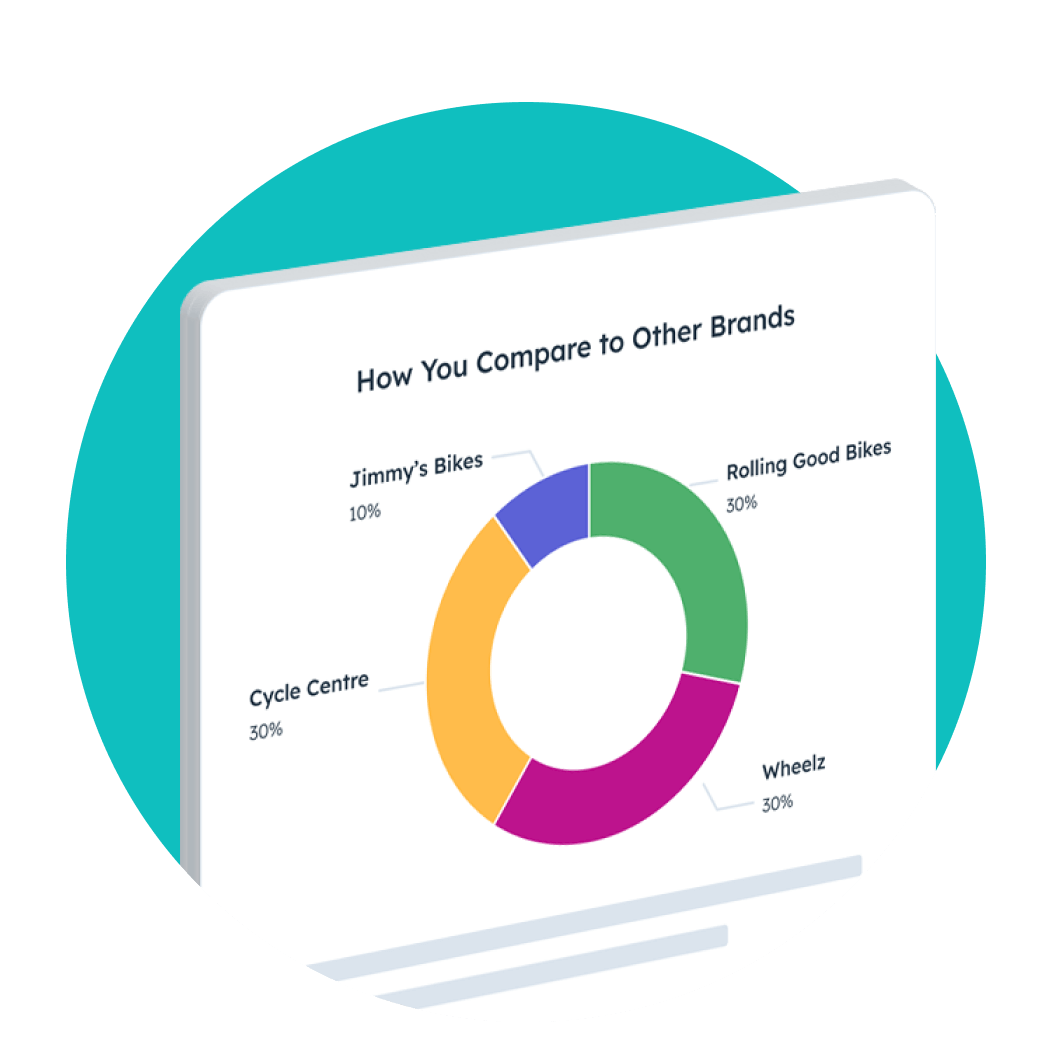
This approach not only makes reporting easier, it spotlights which channels truly drive growth—without the noise of over-segmentation.
Once you’ve mapped out your template, the next step is ensuring the data actually arrives in HubSpot cleanly and stays organized—let’s cover how to put your template into action.
Time to See Every Lead Clearly—No More Guesswork
Ready to stop relying on hunches or scattered notes when it comes to your leads? With a structured lead source template for HubSpot, every new inquiry finds its rightful place—no confusion, no blind spots.
Imagine knowing exactly which campaigns spark curiosity and which channels are bringing in your ideal customers. Better yet, imagine making every marketing decision with confidence, backed by real data.
The next step? Putting this clarity into action—so you can build the template and workflow that finally capture every nuance of your lead journey.
Thank you for reading EasyVC’s blog!
Are you looking for investors for your startup?
Try EasyVC for free and automate your investor outreach through portfolio founders!
How to Implement the Lead Source Template in HubSpot
Using properties and workflows
Start by adding or refining the custom properties identified in your template. Go to Settings → Properties and create fields like “Lead Source Category” or “UTM Source” if you don’t already have them. Choose property types that match the format of your source data to avoid mismatches—dropdowns are perfect for clean reporting.
Once properties are in place, set up workflows to automate lead source assignment. For example, activate a workflow that listens for new contacts, then populates their Lead Source property based on submission page, original source, or UTM parameters captured at form fill. Don’t be afraid to stack criteria: you might tag organic search differently from paid, or separate trade show leads from webinar attendees. Test each workflow to make sure it applies logic the way you expect.
Tips for retroactive cleanup
If your CRM is already full of contacts with patchy or missing lead source data, resist the urge to start over. Instead, filter contacts by creation date or blank lead source fields. Use bulk edits and workflows to update historical records wherever you can spot patterns—such as importing event attendee lists and assigning a unique source, or mapping legacy values to your new standardized ones. For tricky exceptions, exporting your data and cleaning in a spreadsheet before reimporting can reclaim a surprising amount of clarity.
Once your template is in action, you’re ready to turn raw data into insight. Up next, discover how to surface the best-performing channels and make better decisions, fast.
Analyzing and Reporting on Lead Sources
Setting up dashboards
Once your lead source data is clean and structured, visualizing the numbers is the next step. In HubSpot, you can build custom dashboards that surface exactly which sources bring in the most leads. Start with a few simple reports: a pie chart of leads by source, a trendline showing volume over time, and a leaderboard by specific campaigns or referrers.
Organize widgets to reflect your actual buyer journey. Place high-level views (e.g., all “Paid Social” vs. “Organic Search”) at the top. Dig deeper with breakdowns by individual platforms or campaign names just below. Avoid clutter—aim for clarity over quantity.
Finding high-performing channels
Don’t just measure which channels deliver the most leads—focus on those that drive real engagement and conversions. Slice your reports by lifecycle stage, closed deals, or revenue generated. You might discover that a smaller channel delivers a higher percentage of qualified leads, even if it contributes a lower overall count.
Explore patterns: Is a particular source consistently driving SQLs? Are some campaigns full of quick conversions while others lag? Once you spot outliers, you can double down on winners or troubleshoot underperforming avenues.
Armed with clear reporting, you can shift budgets, refine messaging, or tweak campaigns, always with real data steering your decisions. With your source data now actionable, let’s walk through some ready-made templates to kickstart your own tracking system.
HubSpot Lead Source Template Examples (Downloadable)
Simple spreadsheet template
For teams taking their first steps in lead source tracking, this straightforward template covers the essentials: lead name, contact details, creation date, and primary source (e.g. Organic Search, Paid Social, Referral). Its columns reflect the actual fields in HubSpot, making import and data maintenance easy. You can download, customize, and use it to map leads to their source as soon as they hit your CRM.
Advanced template with drill-downs
If you’re ready for deeper analysis, the advanced template introduces layers such as source detail (e.g. Google Ads > Branded Campaign), campaign tag, and medium (email, social, direct). This format supports multi-touch tracking and reveals not just how, but why leads arrive—from the first click to the last interaction. It’s ideal for teams running multiple campaigns who need a holistic view of source performance that goes beyond the basics.
By starting with these templates, you’re set up for reliable lead source tracking—whether you’re just beginning or need sophisticated attribution. Next, we’ll walk through bringing your template to life inside HubSpot so you can capture every detail automatically.
Troubleshooting Lead Source Data in HubSpot
Common issues and quick fixes
Seeing “Unknown” or “Other campaigns” in your lead source reports? This almost always points to tracking code slipping through the cracks. First, double-check that your HubSpot tracking code is installed on every landing page—including those hosted outside HubSpot. Without it, visitor origins go dark.
Another pitfall: blocked cookies. If prospects have strict privacy settings or use browser extensions, source data won’t grab their origins. Consider adding clear cookie consent banners that encourage opt-in, and check for conflict with third-party scripts.
If leads seem misattributed—say, direct traffic showing as paid ads—review your URL parameters. UTM tags can get dropped or overwritten with redirects, especially on platforms like Facebook or Google Ads. Test your links from a clean browser or incognito window to confirm parameters stick end-to-end.
For imported contacts, HubSpot can’t backfill source data unless you pass it in during import. Always include “Original Source” fields where possible. If you’ve missed it, update records manually or through workflows to maintain accuracy.
Even after troubleshooting, some quirks may linger. But with a solid review process, your template should catch the majority of source hiccups before they muddy your reports. Next, let’s look at how to turn clean lead source data into actionable insights for your team.