
Live Update Editor 2.0: Features, Workflow, and Pro Tips

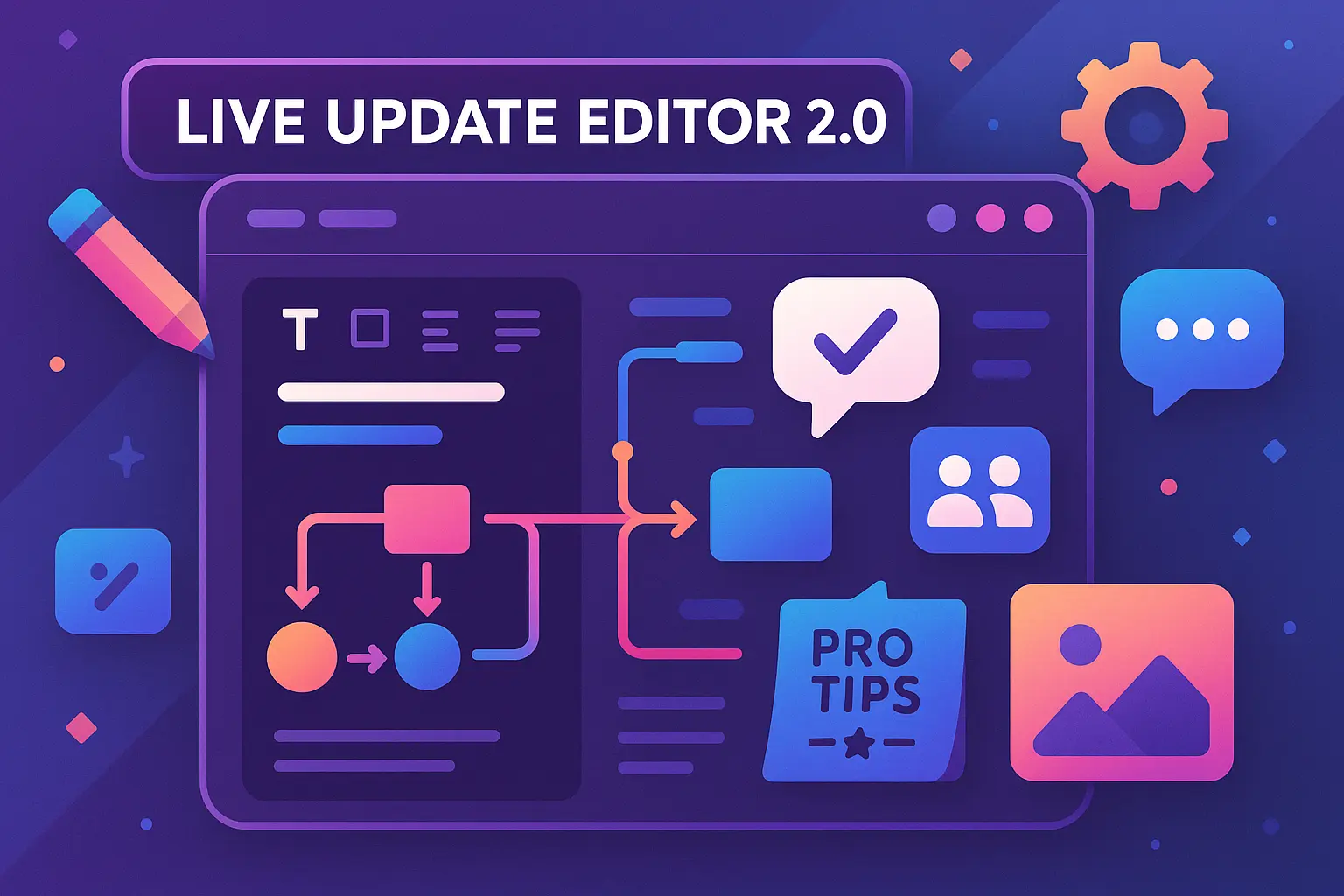
Staying on top of content updates can feel overwhelming, especially if you’re managing projects with multiple writers, editors, and tight deadlines. That’s where Live Update Editor 2.0 comes in. Designed to simplify real-time editing and streamline team collaboration, this latest version adds several thoughtful improvements based on user feedback—like faster content scoring, powerful keyword tracking, and instant feedback systems. A recent survey found that editorial teams using live collaboration tools are able to reduce publishing cycles by up to 30%, which means you can focus more on producing great content and less on waiting for updates or approvals. In this article, you’ll get to know what’s new in Live Update Editor 2.0, how its features work in practice, and some practical tips to help you get the most out of it—whether you’re working solo or managing a team.
What Is Live Update Editor 2.0?
Core Functionality Overview
Live Update Editor 2.0 is a content editing environment designed to streamline real-time collaboration and ensure every update appears instantly across your content team. Instead of relying on periodic refreshes or clunky synchronization, changes flow directly as you type, making it feel as if everyone is working inside the same document at the same time—even if they’re continents apart.
The core system combines text editing, instant preview, and dynamic content scoring, all presented within a single clean workspace. This eliminates the guesswork often involved in managing multiple editors, external tools, or constantly switching browser tabs.
What’s New in Version 2.0
The leap to 2.0 isn’t just a version bump—it reimagines the platform’s underlying tech and user experience. The entire workflow is now seamless: multi-keyword editing, block-based structure for granular control, and smarter features for rapid organization of digital content.
With speedier autosave, color-coded live suggestions, and a revamped interface, 2.0 feels lighter and more intuitive. You’ll notice smarter automation for tracking changes, built-in AI suggestions woven right into the editor, and a focus on collaborative transparency—meaning you know, at a glance, not just what’s changed but also who changed it, and why.
Now that we’ve unpacked what sets this editor apart, let’s explore the most powerful tools it brings to your workflow.
Key Features of Live Update Editor 2.0
Real-Time Content Collaboration
Edit documents alongside your team and see changes appear instantly—no lag, no conflicting copies. Typing, suggestions, and highlights sync across every screen the moment they happen. Assign and track responsibilities directly within the document, resolving comments and suggestions together in one shared workspace.
Multi-Keyword and Structured Editing
Optimize for multiple target keywords simultaneously—without switching between tools or tabs. The sidebar keeps every keyword and its performance at your fingertips, so you can organize, structure, and prioritize sections according to your content strategy. Section templates and outliner tools help ensure that all ideas stay organized and that nothing slips through the cracks.

Instant Content Scoring and Suggestions
The editor scores your content as you type, evaluating keyword usage, readability, and structure on-the-fly. Immediate feedback appears in the dashboard, offering actionable suggestions on everything from linking opportunities to overused phrases—so you always know what to improve while you write.
Having explored the key features, now it’s time to see how you can set up your first project and make the most of the editor’s smart interface with ease.
How To Get Started with Live Update Editor 2.0
Setting Up Your First Project
Getting up and running with Live Update Editor 2.0 is refreshingly straightforward. Begin by signing in with your account credentials—no tedious onboarding required. From the dashboard, hit the “Create New Project” button. Here, you’ll pick your content goal, enter primary and secondary keywords, and define your target audience. The setup wizard guides you through each field, with real-time feedback to help you craft a solid foundation from the outset.
Navigating the Interface
Once your project spins up, you’ll land in the heart of the editor. The left sidebar organizes your project’s structure—quickly jump between headings, drafts, or collaboration threads. In the center, the main editing canvas awaits, updating instantly whether you’re typing, pasting, or collaborating. Need a nudge? Inline prompts and floating suggestions quietly provide guidance as you work. Customizable side panels let you toggle between keyword analysis, scoring insights, and content outline without losing your place.

Now that you’re comfortable with setup and navigation, it’s time to dive deeper into the innovative tools that make your content creation experience both efficient and collaborative.
Thank you for reading EasyVC’s blog!
Are you looking for investors for your startup?
Try EasyVC for free and automate your investor outreach through portfolio founders!
Ready to move from editing chaos to creative flow? The new Live Update Editor 2.0 isn’t just about fast changes—it’s designed to help you ship polished, optimized content in record time.
If you haven’t tried real-time scoring or breezed through a multi-keyword draft yet, now’s your chance. Jump in, explore, and watch your content transform as you work.
Up next, tap into some under-the-radar shortcuts and advanced strategies that will supercharge your workflow and give your team an edge.
[CTA-HOOK]Advanced Tips for Power Users
Team Collaboration Shortcuts
Hold Ctrl+Shift and click any paragraph to instantly highlight it for your teammates. No more tagging endlessly—these highlights show up in real-time across all collaborator screens, making it easy to flag urgent changes or bottlenecks during a live session.
Double-tap any collaborator’s avatar in the sidebar to view their cursor location instantly. It’s a lightning-fast way to see who’s working where without disrupting the natural flow of editing.
Custom Term Marking and Filtering
Right-click on a keyword and select “Mark as Priority” to pin terms that drive your main optimization efforts. These terms are automatically aggregated into a custom sidebar list for easy reference throughout the session.
Press Alt+F to open the term filter panel. From here, filter content by marked terms, flagged sentences, or even author contributions. This makes reviewing large documents or team efforts far less overwhelming, especially in intense optimization sprints.
Tracking Edits and Version History
Need to audit changes fast? Use the Timeline Slider at the top of your editor window. Drag it to jump between different save points—no fiddling with chaotic histories or endless restore dialogues. For granular checks, hover your mouse over any sentence to see who last edited it and when.

Tap on any version in the sidebar to load a side-by-side diff, making it clear what’s changed and letting you copy or roll back specific blocks without restoring the entire document.
If you’re ready to face more complex challenges, understanding how to tackle problems and unexpected errors in the tool will keep your workflow running smoothly—let’s dig into solutions and support next.
Troubleshooting and FAQs
Common Issues After Upgrading
After moving to Live Update Editor 2.0, you might notice your saved drafts failing to load. Clear your browser cache and ensure cookies are enabled—this fixes 90% of loading hiccups. If collaboration features refuse to sync, double-check your team members’ permission levels: 2.0 introduces granular roles that need to be set manually on first launch. If copy-paste formatting looks odd, try toggling the new “Keep Formatting” switch in your editor settings.

If your integrations from version 1.0 have vanished, look for the migration assistant in the settings menu. This wizard helps re-connect popular add-ons in seconds.
Contacting Support and Providing Feedback
Hit a wall? Click the “?” button directly atop the toolbar. This opens instant chat with the support team (no ticket limbo). For feature requests or feedback, head to the Feedback tab in the profile dropdown—submissions here go straight to the product team’s review dashboard, and you’ll get notified when your idea is under consideration.
Once you’re comfortable troubleshooting, you’ll want to unlock the editor’s full potential. Go a step further with the advanced techniques in the next section.