
Ecommerce Google Sheet Template: Sales Tracking, Inventory, and Analytics Made Simple

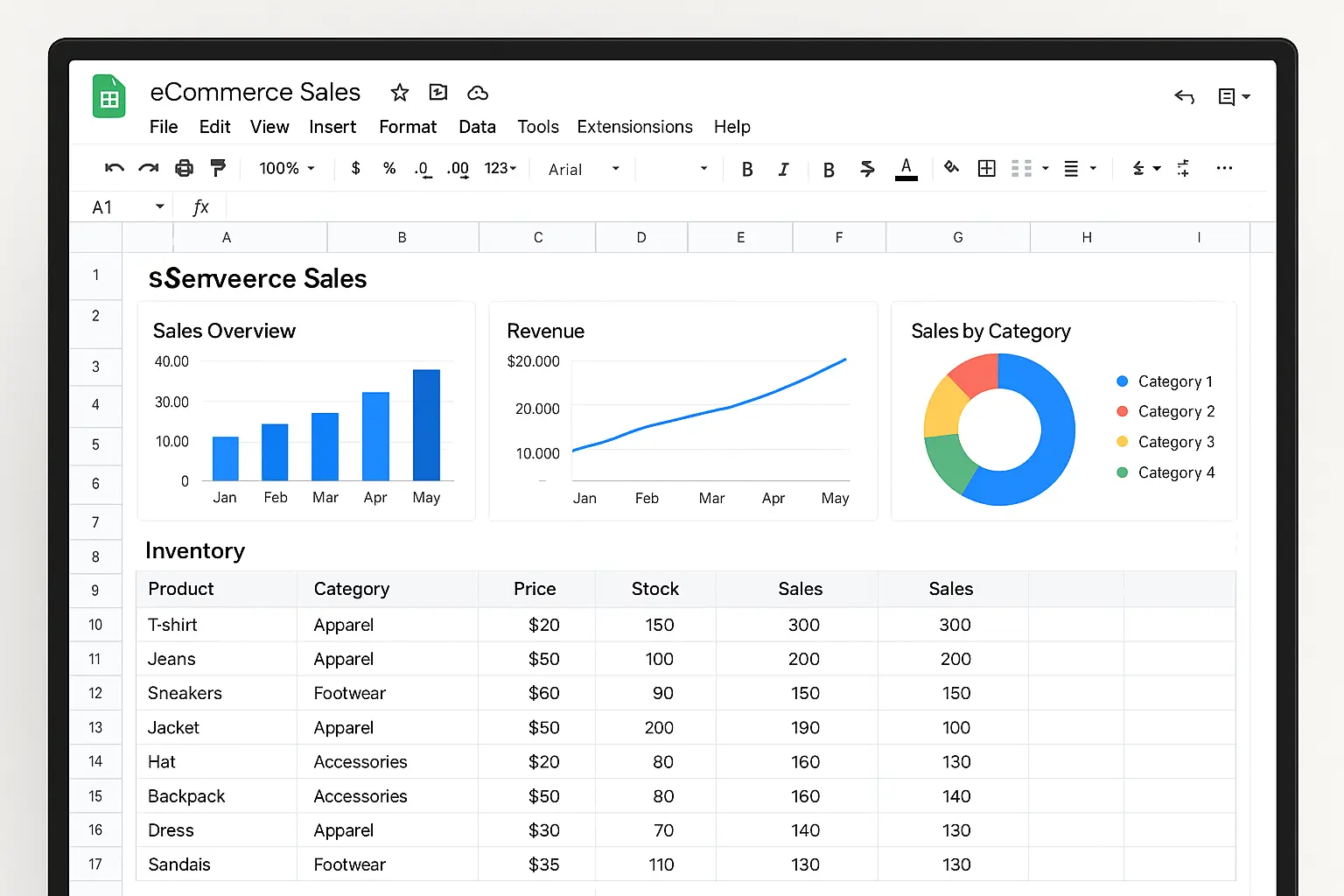
Running an online store often means juggling endless spreadsheets, trying to keep tabs on sales, inventory, and shop performance. If you’ve ever lost track of what’s selling, wondered where your stock went, or struggled to make sense of your sales data, you’re not alone. According to Shopify’s 2023 ecommerce trends report, 67% of small business owners say that manual tracking slows down decision-making.
That’s where a good Google Sheet template comes in. With the right setup, you can track orders, manage inventory, and spot sales patterns—all in one place, without expensive software or advanced tech skills. This post will guide you through how a free ecommerce Google Sheet template can simplify the way you track sales, handle inventory, and understand your business analytics. If you want to spend less time on spreadsheets and more time growing your store, you’re in the right place.
Why Use a Google Sheet Template for Ecommerce?
Running an online store means staying on top of numbers: sales, stock, trends, and more. But juggling platforms and exporting data for every tool can get messy fast. That’s why many store owners turn to Google Sheets templates built for ecommerce—they give you one flexible, reliable place to track what matters most, in real time.
Faster Sales Reporting
Instantly see your daily revenue, best sellers, or spikes in traffic. Instead of digging through multiple dashboards, a well-structured Google Sheet pulls it all together, so you can spot issues—or wins—right away. With formulas and live links to your store data, your numbers are always up to date, no manual uploading required.
Customizable for Any Store Platform
Every business runs a little differently. Maybe you sell on Shopify, WooCommerce, or Amazon—or all three. Google Sheets templates let you adapt columns and formulas to fit your exact catalog, pricing, and workflow in minutes. Add new product lines, change how you calculate shipping costs, or track flash sales without needing a developer.
Visualizing Trends and KPIs
Numbers are easier to act on when you can actually see them. Good templates come with dashboards and quick visualizations. Spot patterns with charts: are weekend sales up? Did your new product take off? Your key performance indicators are front and center.

The benefits aren’t just theoretical—they translate to real, daily control over your store’s performance. Speaking of performance, let’s break down the specific features that make a sheet template truly useful for ecommerce owners.
Essential Features Your Ecommerce Google Sheet Template Should Have
Sales Dashboard
This is your command center: a single tab that pulls together sales figures, revenue, refunds, and daily progress against your goals. Look for a layout with live charts and sparklines, so trends jump out at you—no need for fancy BI tools. A clear sales dashboard turns scattered transactions into actionable insights.
Product and Inventory Tracker
An inventory sheet should do more than count stock. Track every SKU, supplier info, cost per item, reorder points, and sales velocity. Color highlights for low-stock items and automatic “days until out of stock” calculations prevent embarrassing sell-outs, and streamline your reordering process.
Order and Fulfillment Sheet
Go beyond “pending” and “shipped.” The best templates let you assign each order a status (awaiting payment, processing, in transit, delivered), track shipping dates, carrier info, and return status—all in one view. Reduce lost orders and missed shipping deadlines with well-designed progress trackers.
Customer Insights
Capture more than emails and names. Build a profile with repeat purchase rate, lifetime value, last order date, and even customer segment tags. Use filters and pivot tables to quickly see who your loyalists are, who’s at risk of churning, and opportunities for upsells.
Ad and Channel Attribution
Connect your marketing spend to results. Allocate orders and revenue by channels—Google, Facebook, email, or referrals. Watch cost per acquisition and ROI update as sales come in. This feature replaces guesswork with numbers, showing you exactly where to double down (and what’s draining your ad budget).
Once you’ve built these foundations, equipping your Google Sheet for day-to-day use is easy. Next up, learn how to grab a ready-made template and see what those tabs actually look like in action.
Download: Free Ecommerce Google Sheet Template
How to Get the Template
Ready to take control of your ecommerce data? Downloading our free Google Sheet template is easy. Just click the download link below to make your own copy—no forms, no email signups, no fuss. The template opens in Google Sheets so you can get started right away.
Get the Free Ecommerce Google Sheet Template
Template Structure Overview
Once you’ve opened the template, here’s what you’ll find inside:

Feel free to duplicate, edit, or expand the template—it’s designed to work out of the box but flexible enough for your growing business needs.
The next step? Let’s walk through customizing your template so it fits perfectly with your specific ecommerce platform and workflow.
How to Customize the Template for Shopify, WooCommerce, or Amazon
Importing Data Automatically
The real magic of a Google Sheet template is how it adapts to your store. For Shopify, WooCommerce, or Amazon, start by setting up automatic data imports. For Shopify, use Google Sheets add-ons like “EZ Exporter” or “AutoSync,” which let you send order and product data right into your template—no copy-pasting. WooCommerce users can connect plugins (like “Export Order Items” or Zapier) to feed data straight into your sheet. If you’re selling on Amazon, Amazon Seller Central allows you to schedule a daily or weekly sales report, which you can then import into your sheet using the built-in “File > Import” feature.

Setting up these data imports ensures your sales, inventory, and order sheets stay updated without manual effort, so analytics always reflect the latest numbers.
Adding Your Store’s Unique Metrics
No two stores measure success quite the same way. Maybe you want to track repeat purchase rate in Shopify, coupon usage in WooCommerce, or FBA vs. FBM sales in Amazon. Customizing your sheet is simple: just add new columns for these metrics and update any summary formulas or charts to pull data from them. For example, if you track “gift wrap” orders on Amazon, insert a column in your Orders sheet and tally that separately. If you run both retail and wholesale in WooCommerce, color-code or filter rows by customer type so you can report on them side by side.
By aligning your template to your business’s flow, you get clear, relevant dashboards without clutter or confusion.
Now that your template is tailored and your data flows in automatically, let’s make your operations even smoother. In the next part, you’ll see how to cut more busywork by letting Google Sheets handle recurring reports all by itself.
Reducing Busywork: Automating Data Import and Reports
If copying and pasting sales data still takes up a chunk of your week, it’s time to let Google Sheets do the heavy lifting. Smart automation keeps your store running smoother by pulling in updates and sending insights, all while you focus on what matters—growth and customers.
Use of Google Sheets Add-ons
Add-ons like Sheetgo, Supermetrics, and Coupler.io let you connect your Google Sheet directly to Shopify, WooCommerce, Amazon, or even PayPal. Instead of juggling CSV exports, these tools fetch sales, orders, or inventory details for you. Just set the add-on once, map fields, and your data flows in daily, hourly, or whenever you choose. No more errors, no more missed uploads.

The payoff? Sales dashboards stay current, inventory sheets reflect live stock, and all the numbers you rely on update themselves even while you sleep.
Scheduled Email Summaries
Google Sheets can automatically email you or your team a summary report every morning, week, or whenever you want. By combining built-in Email Notifications with functions like QUERY and IMPORTRANGE, your template can send out sales stats, low inventory warnings, or fulfillment snapshots. No logging in needed—just check your inbox for the day’s snapshot.
The real magic of automation is freeing up hours for bigger-picture work. Once your flows are running, you can shift focus from repetitive admin to analyzing trends and making decisions that move the needle. Next up, let’s dig into practical ways to make your sheets even smarter for ecommerce reporting.
Tips for Better Ecommerce Reporting in Google Sheets
Useful Formulas for Ecommerce Data
Put formulas to work so your sales and inventory sheets update automatically. For instance, use =SUMIF() to total revenue by product or =ARRAYFORMULA() to fill entire columns. Functions like =UNIQUE() help you instantly list all products sold, while =VLOOKUP() connects your product list with real-time inventory or pricing.
Conditional Formatting for Fast Insights
Highlight what needs attention. Set up conditional formatting to flag low inventory in red, mark top sellers in green, or spotlight any overdue orders. Visual cues make trends and headaches pop out immediately without sifting through rows of numbers.
Tracking Marketing ROI in Sheets
Make a sheet for each marketing channel and use =SUMIFS() to match spend with sales for Facebook, Google Ads, or email campaigns. This lets you compare actual profit-per-channel side by side. With =QUERY() or =FILTER() you can break down sales by source, helping you focus on what brings in loyal buyers.
Once your reports spotlight your store’s story, take things a step further by tailoring your data visualizations and insights to fit your unique ecommerce goals and growth.
FAQ: Ecommerce Google Sheet Templates
Is the template really free?
Yes, you can grab the ecommerce Google Sheet template at no charge. Just open the copy link, select “Make a copy” in your Google Drive, and it’s yours—no credit card, no hidden fees. You can personalize it or use it as-is for as long as you like.
Can I use this for more than one store?
Absolutely. The template is built to handle data from multiple stores. Duplicate the relevant sheets or create separate tabs for each business. Many users track sales, inventory, or ads across various Shopify, WooCommerce, or even Amazon businesses in one file. Just name your tabs clearly to avoid confusion.
How secure is Google Sheets for ecommerce data?
Google Sheets takes security seriously. Files are encrypted, and you control who sees your data by managing sharing permissions. For sensitive financials, only grant access to trusted team members. Adding two-factor authentication to your Google account adds another layer of protection.
Still have questions or want to get more out of your template? Up next, let’s look at how to maximize your ecommerce numbers with simple but powerful reporting strategies.